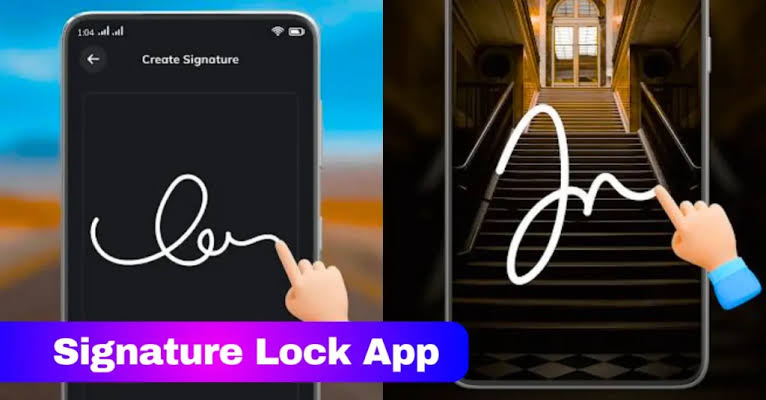

Gesture Lock Screen Setup Guide for Android
Smartphones contain a large amount of personal information, including photos, videos, messages, contacts, and important apps. Protecting this data is essential, and one of the easiest ways to secure your Android device is by using a Gesture Lock Screen. A gesture lock allows users to unlock their phones by drawing a custom pattern or gesture instead of entering a traditional password. It offers a balance between convenience and security, making it a popular choice among Android users.
What is a Gesture Lock Screen?
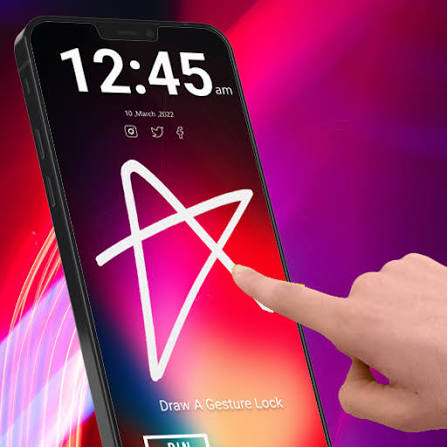
A Gesture Lock Screen is a security feature that allows users to unlock their Android devices by drawing a specific pattern on the screen. Instead of typing a PIN or password, users simply connect dots or draw a predefined gesture to gain access to their phones.
Gesture locks are widely used because they are easy to remember and quick to use. They also provide an extra layer of protection against unauthorized access.
Benefits of Using a Gesture Lock
There are several advantages to setting up a gesture lock on your Android device:
Quick Access
Unlocking your phone with a gesture is often faster than entering a long password or PIN.
Easy to Remember
Most users find visual patterns easier to remember than complex passwords.
Better Security
A custom gesture helps protect personal data from unauthorized users.
Convenient for Daily Use
Gesture locks can be used with one hand and are ideal for users who frequently access their devices throughout the day.
How to Set Up a Gesture Lock on Android
The setup process may vary slightly depending on your device manufacturer and Android version, but the general steps remain similar.
Step 1: Open Settings
Unlock your Android phone and open the Settings application.
Step 2: Navigate to Security Settings
Scroll down and tap Security, Lock Screen, or Security & Privacy, depending on your device.
Step 3: Select Screen Lock
Choose the Screen Lock option to view available security methods.
Step 4: Choose Pattern Lock
Select Pattern from the available lock screen options.
Step 5: Create Your Gesture
Draw your preferred pattern by connecting the dots on the screen. Try to create a pattern that is easy for you to remember but difficult for others to guess.
Step 6: Confirm the Pattern
Draw the same pattern again to confirm it.
Step 7: Save the Settings
Tap Confirm or Done to activate the gesture lock.
Your Android device is now protected with a gesture lock screen.
Tips for Creating a Strong Gesture Lock
To improve security, follow these best practices:
- Use at least six connected dots if possible.
- Avoid simple shapes such as straight lines.
- Do not use obvious patterns like letters or basic geometric shapes.
- Keep your gesture private.
- Regularly update your lock pattern if necessary.
What to Do If You Forget Your Gesture
If you forget your gesture lock, you may have several recovery options:
- Use your Google account if supported by your device.
- Unlock using fingerprint or face recognition if previously configured.
- Use the manufacturer’s recovery service.
- Perform a factory reset as a last resort.
Keep in mind that a factory reset may erase data that is not backed up.
Additional Security Features
For maximum protection, consider combining your gesture lock with other Android security features:
- Fingerprint Unlock
- Face Unlock
- Two-Factor Authentication
- Find My Device
- Secure Folder Features
- App Lock Applications
These tools help protect both your device and your personal information.
Common Gesture Lock Issues
Some users may experience problems such as:
Pattern Not Recognized
Clean the screen and try drawing the pattern more carefully.
Touchscreen Problems
Restart the device or check for software updates.
Forgotten Pattern
Use available recovery methods or contact device support.
Conclusion
A Gesture Lock Screen is a simple and effective way to secure your Android smartphone. It provides quick access while helping protect personal information from unauthorized users. By creating a strong pattern and following basic security practices, Android users can enjoy both convenience and peace of mind. Whether you are setting up a new device or improving your phone’s security, a gesture lock is a smart choice for everyday protection.